AI Workflow SOP
Higgsfield & HeyGen Production Pipeline
1. Purpose of This SOP
This SOP documents our current AI-based image and video production workflow, primarily using Higgsfield and HeyGen, to ensure consistency, quality, and cost control across projects.
AI tools are evolving rapidly, and platforms, models, and capabilities will continue to change. While specific tools or settings may be updated over time, the core principles of our workflow, planning first, controlled experimentation, quality checks, and cost awareness, remain constant.
This document focuses on those principles, along with our current best practices.
This SOP is intended for:
New editors and AI artists joining the team
Internal team members working on AI-assisted projects
Academy students learning real-world production workflows
2. What Is the “Higgsfield Workflow” (High-Level Overview)
The Higgsfield workflow refers to our structured approach to generating AI-based images and videos using Higgsfield as a primary all-in-one generation platform.
Why Higgsfield?
We chose Higgsfield because:
It combines image generation and video generation in a single platform
It supports multiple high-quality models under one subscription
It allows faster iteration compared to managing multiple separate tools
It fits well into a production pipeline where AI outputs are later refined in tools like After Effects
Higgsfield is not used in isolation. It sits within a broader production pipeline that may include:
Stock footage
Motion graphics
Manual compositing and editing
Voiceover and spokesperson generation (via HeyGen)
The workflow is designed to support production, not replace creative or editorial decision-making.
3. When We Decide to Use AI
We use AI only when it makes practical sense for the project.
Primary trigger
When the client explicitly asks for AI-based visuals or videos
Additional conditions
AI usage must be:
Clearly defined (the client’s expectation is understandable and achievable)
Practical within current AI limitations
Aligned with project timelines and quality standards
If the request is vague or unrealistic, we clarify the scope before generating.
AI is not used as a guessing tool.
We avoid AI when:
Stock footage or motion design can achieve better control
Visual accuracy is critical, and AI inconsistencies would cause delays
The output requires precise typography, branding, or layouts that AI cannot reliably deliver
4. Tools We Use (Current)
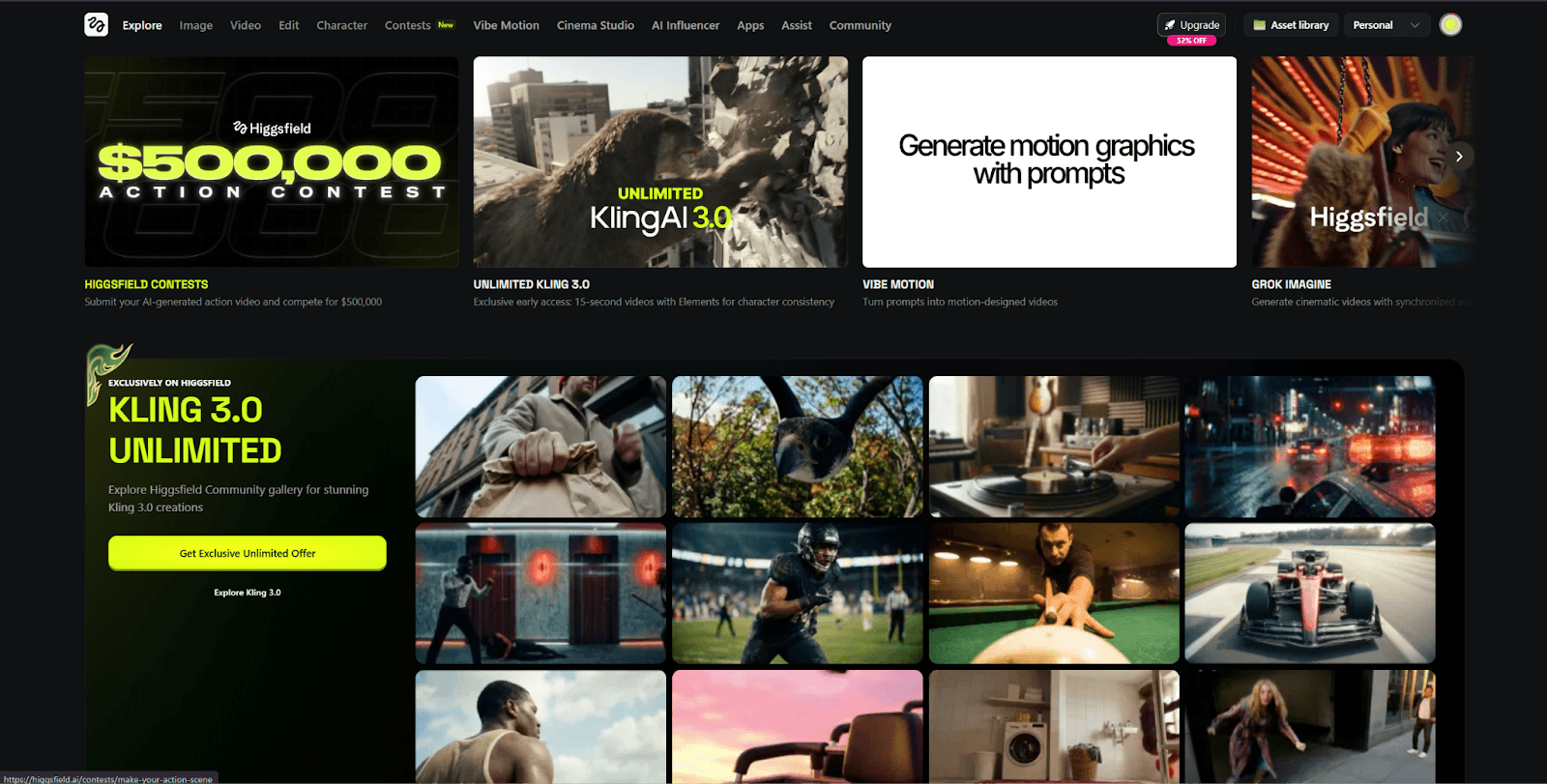
4.1 Higgsfield (Image & Video Generation)
Higgsfield is our primary AI tool for:
Concept images
Start and end frames for AI videos
Short AI-generated video sequences
It supports multiple internal models with varying quality, speed, and credit cost.
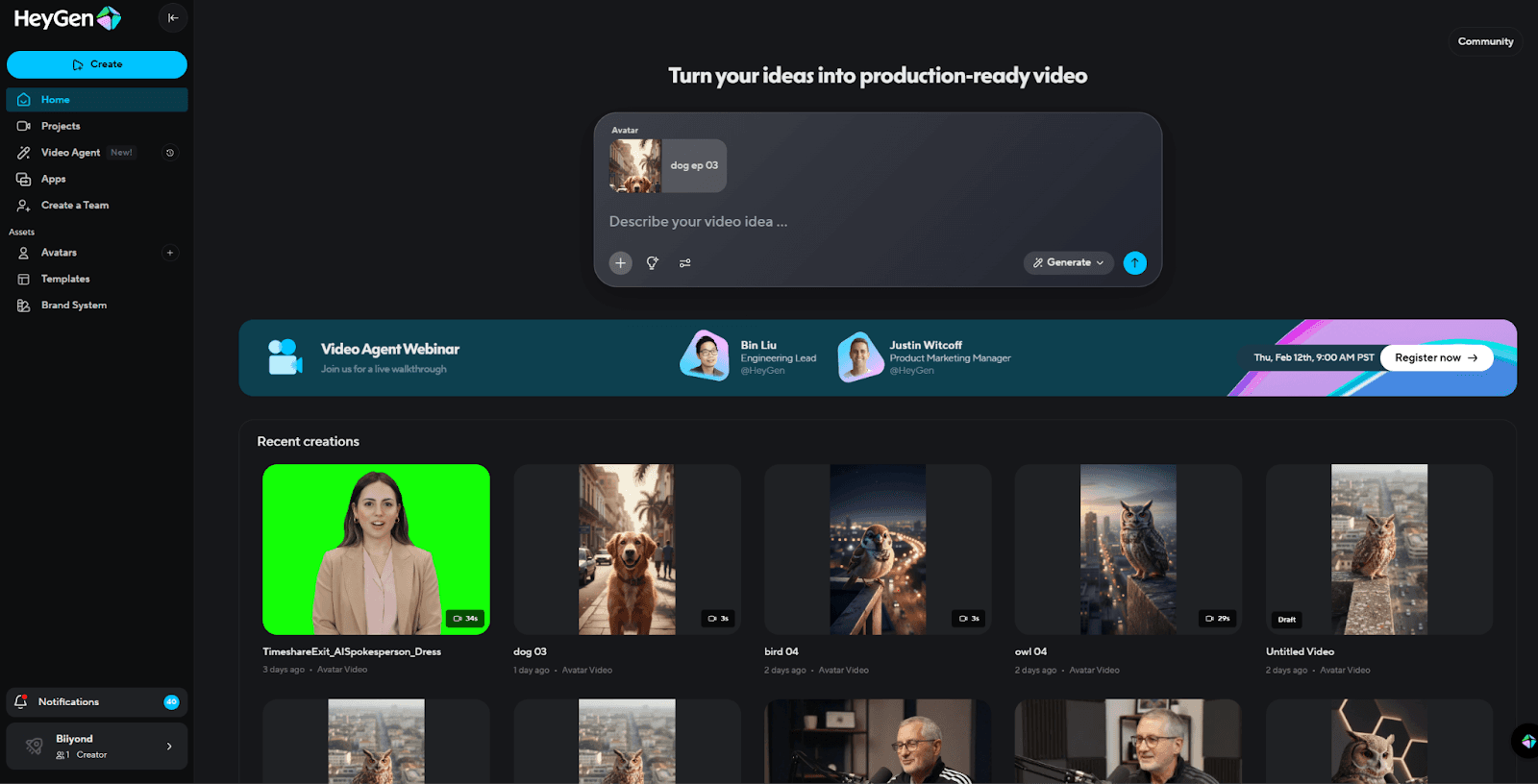
4.2 HeyGen (Spokesperson Videos)
HeyGen is used specifically for:
AI spokesperson videos
Talking-head or presenter-style content
Scenarios where a human presence is required but live shooting is not feasible
HeyGen has its own workflow, separate from Higgsfield:
Script preparation is critical
Visual customization is limited compared to manual shoots
Outputs are often combined later with motion graphics or UI animations
HeyGen is used only when a spokesperson format is clearly required.
5. Core Production Workflow (Step-by-Step)
This workflow applies mainly to Higgsfield-based projects.
Step 1: Concept & Intent Clarity
Before any AI generation:
Define what the shot must communicate
Decide whether AI is used for:
Atmosphere
Illustration
Abstract visuals
Product-style representation
Identify if the output is a final asset or an intermediate asset for further editing
Step 2: Prompt Preparation (Critical Step)
Prompt preparation is the most important part of our AI workflow.
Most quality issues and credit waste come from weak or unclear prompts.
5.2.1 Official References & Learning
Always refer to Higgsfield’s official tutorial channel https://www.youtube.com/watch?v=AdjllfZuqYM for:
Model behavior
Prompt structure
New features and limitations
If you are not confident in writing prompts, use GPT to:
Refine your idea
Structure complex prompts
Convert visual intent into technical descriptions
GPT is a support tool, not a replacement for understanding the scene.
5.2.2 Prompting for Single Images vs Sequences
Generating one image at a time works fine for:
Standalone visuals
Mood shots
Abstract or atmospheric scenes
However, this approach fails for sequences, such as:
Story-driven visuals
Product showcases
Consistent characters
Multi-shot video scenes
Why?
Each new generation subtly changes:
Backgrounds
Lighting
Product details
Facial structure
This breaks visual continuity and makes sequence videos unusable.
5.2.3 About Higgsfield’s Popcorn Storyboard Feature
Higgsfield provides a Popcorn Storyboard feature that:
Accepts reference images
Generates scene-based sequences from descriptions
While useful in theory, in practice:
It has creative limitations
It frequently flags NSFW (Not Safe For Work) errors
Even for harmless details
This disrupts production flow and wastes time
Because of this, Popcorn Storyboard is not reliable for consistent production work.
5.2.4 Our Proven Method for Consistent Sequences (Recommended)
For consistency in story, product, or character development, we employ the following manual and reliable approach.
Step A: Generate a Cinematic Contact Sheet (3×3 Grid)
Instead of generating separate images, we:
Use the normal image generation page
Select a preferred model (commonly Nano Banana or Nano Banana Pro)
Generate a single 3×3 cinematic storyboard grid
This forces the AI to:
Lock the subject
Maintain environmental consistency
Preserve lighting, colors, and proportions
Example Prompt Structure (Reference Prompt)
Purpose: Generate 9 consistent cinematic shots of the same subject(s) in one environment.
Analyze the entire movie scene. Identify ALL key subjects present (whether it's a single person,
a group/couple, a vehicle, or a specific object) and their spatial relationship/interaction.
Generate a cohesive 3x3 grid "Cinematic Contact Sheet" featuring 9 distinct camera shots of
Exactly these subjects in the same environment.
You must adapt the standard cinematic shot types to fit the content:
- If a group, keep the group together
- If an object, frame the whole object
Row 1 (Establishing Context):
1. Extreme Long Shot (ELS)
2. Long Shot (LS)
3. Medium Long Shot (3/4 view)
Row 2 (Core Coverage):
4. Medium Shot (MS)
5. Medium Close-Up (MCU)
6. Close-Up (CU)
Row 3 (Details & Angles):
7. Extreme Close-Up (ECU)
8. Low Angle Shot
9. High Angle Shot
Ensure strict consistency:
- Same people or objects
- Same clothing/materials
- Same lighting and environment
Photorealistic textures, cinematic color grading, and realistic depth of field.
No repeated shots.
This grid becomes the visual backbone of the entire sequence.
5.2.5 Extracting High-Quality Frames from the Grid
Because the contact sheet is a single image:
Direct cropping may result in blur or quality loss
We use two reliable methods:
Method 1: AI-Based Frame Extraction
Re-upload the grid
Prompt example:
Extract a high-resolution frame from row 1, column 2.
Maintain original subject integrity, lighting, and proportions.
Repeat for all required frames.
Method 2: Crop + Enhance
Manually crop the desired frame
Upload it back into Higgsfield
Use enhancement prompt:
High-resolution upscale, extreme detail.
Enhance clarity and fine textures while maintaining the original subject’s integrity.
5.2.6 Moving to Video Generation
Once we have:
Clean
High-resolution
Consistent frames
Only then do we proceed to:
Video generation (Minimax / Kling)
Lower retries
Better continuity
Reduced credit waste
This workflow is mandatory for:
Sequence videos
Product stories
Character-driven visuals
5.2.7 Review & Selection
After generation:
Review for visual consistency
Check faces, hands, text, and layout
Select only usable outputs for further processing
Rejected outputs are part of the process but must be minimized.
6. HeyGen Spokesperson Video Workflow
This workflow is used for AI spokesperson / talking-head videos where a human presence is required without live shooting. HeyGen is used after visual preparation is completed.
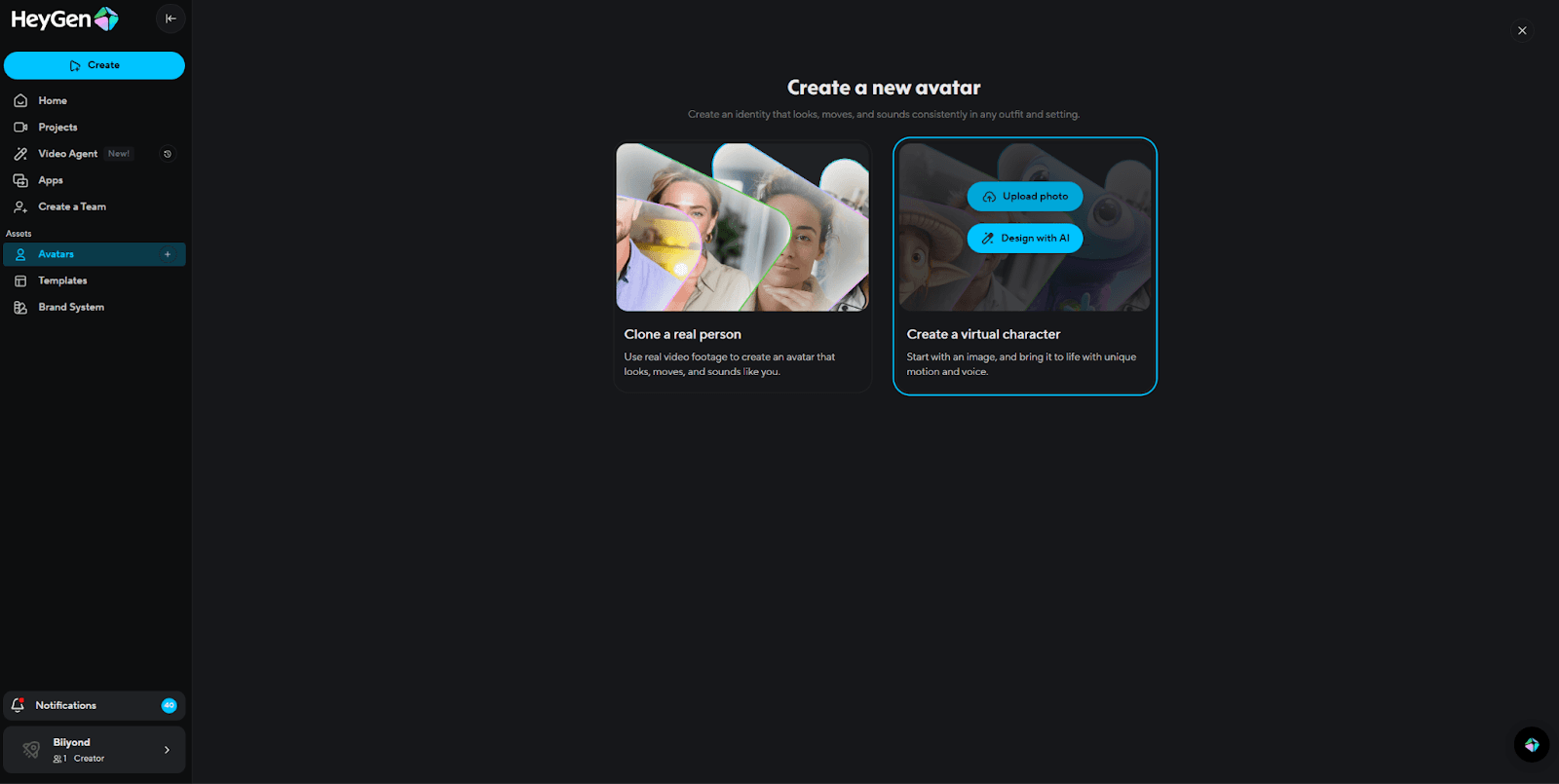
Avatar Image Preparation (Higgsfield)
All HeyGen avatars start with a high-quality image generated in Higgsfield.
Requirements for the Avatar Image
Front-facing or slight 3/4 angle
Neutral facial expression
Clear facial features (eyes, lips, jawline)
No motion blur or extreme lighting
Simple or studio-style background
Poor input images result in poor lip sync and unnatural movement, so do not skip this step.
Once finalized, export the image at the highest available resolution.
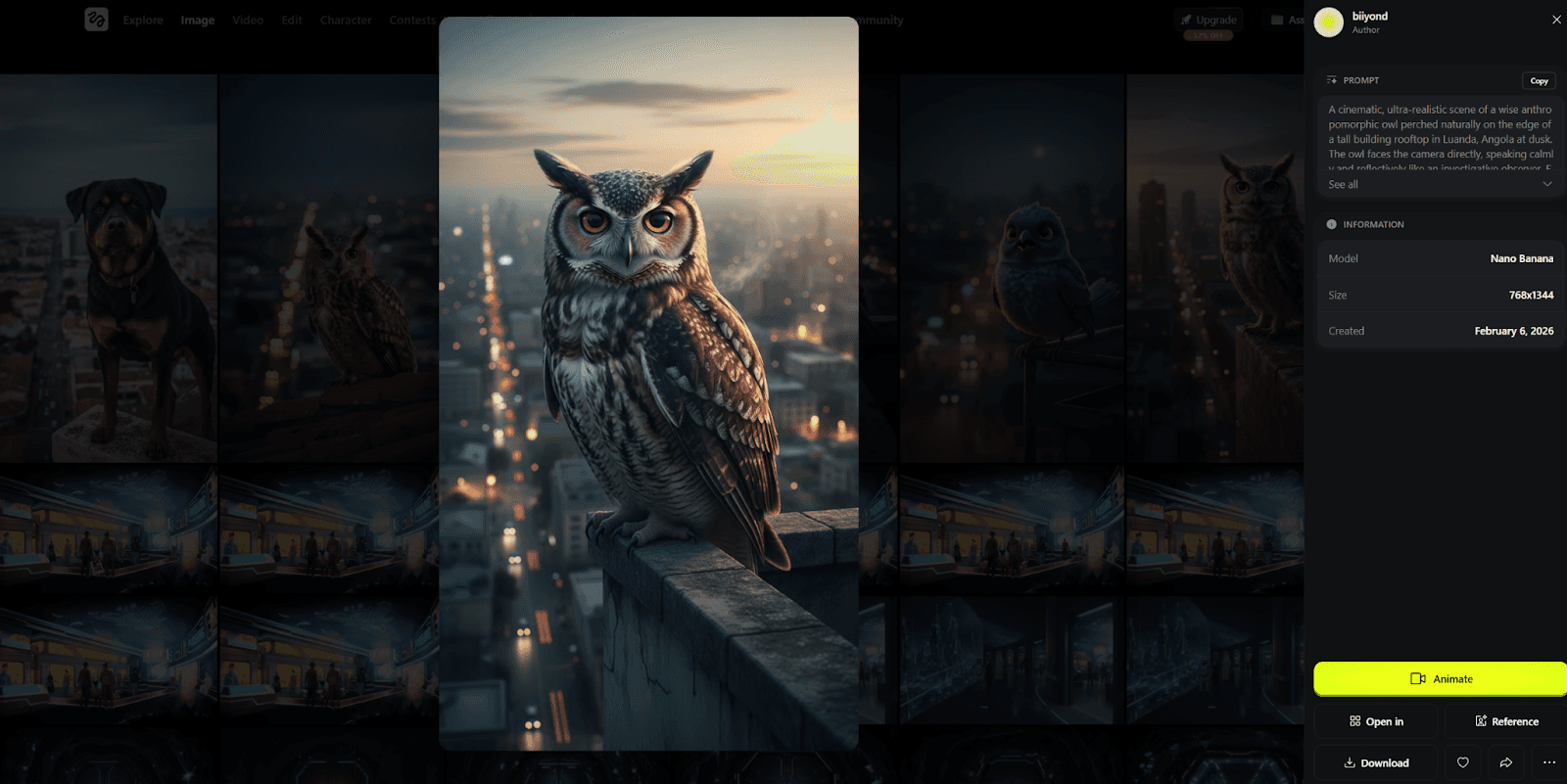
Creating the Virtual Character in HeyGen
Open HeyGen
Go to Avatars
Select Create a Virtual Character
Upload the Higgsfield image
Let HeyGen process and generate the avatar
Quality Check
Facial proportions look natural
Mouth and eye alignment is correct
No visible distortions
If issues appear, regenerate the image in Higgsfield instead of forcing fixes in HeyGen.
Audio Strategy (Decide First)
Before building the video, decide which audio source will be used:
Option A: HeyGen AI Voice
Used for:
Internal demos
Fast drafts
Non-brand-critical videos
Option B: External Audio (Preferred for Final Delivery)
Used when:
Client provides voiceover
The brand requires prema ium voice quality
Specific tone, accent, or pronunciation is needed
External audio is usually generated using ElevenLabs or provided directly by the client.
External Audio Workflow (Client Audio or ElevenLabs)
Preparing the Audio
Format:
.mp3or.wavClean, noise-free audio
Natural pacing (not rushed)
Final script only (no placeholders)
If generating audio:
Use ElevenLabs
Select the correct voice and tone
Generate the final voiceover
Download the audio file
Uploading Audio & Lip Sync in HeyGen
Open the HeyGen project
Upload the external audio file
HeyGen will:
Automatically transcribe the audio
Apply lip sync to the avatar based on the audio
Important Rules
Do not regenerate voice inside HeyGen once external audio is uploaded
Always review:
Lip sync accuracy
Timing of pauses
Natural facial movement
If lip sync feels off:
Slightly adjust the pacing in ElevenLabs
Re-upload the audio
Avoid regenerating the avatar unless necessary
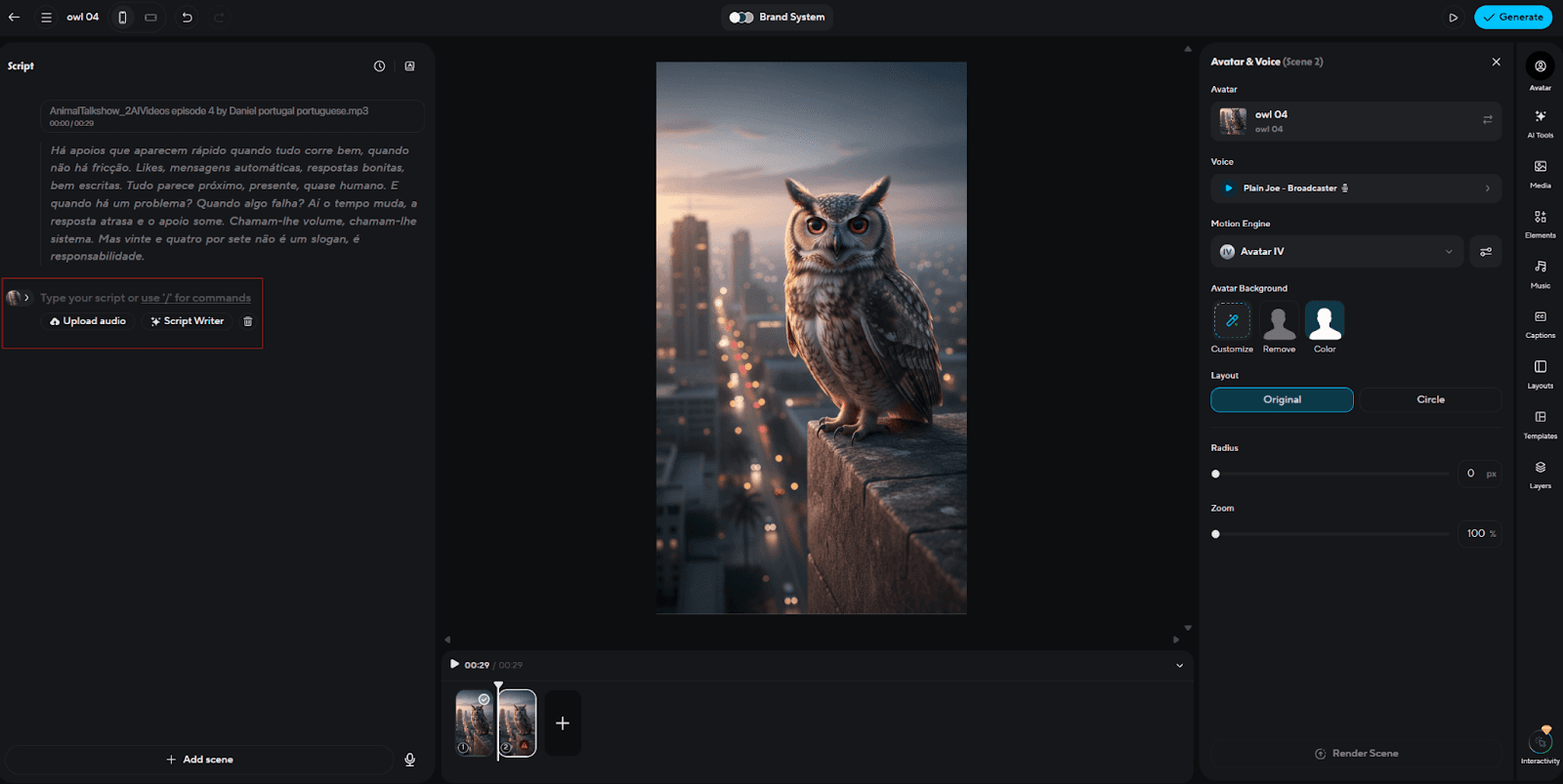
Scene & Layout Setup
Configure the visual layout:
Avatar position (center / left / right)
Background:
Solid color
Gradient
Brand background (if provided)
Ensure safe framing:
Head not touching edges
Adequate space for text overlays
This ensures compatibility with website embeds and post-production graphics.
Video Generation & Review
Generate the video
Review for:
Lip sync accuracy
Facial realism
Natural head movement
No glitches or freezes
If issues appear:
First adjust the audio
Then adjust script pacing
Regenerate only if necessary
Export & Post-Production
Export the final video from HeyGen
Import into:
After Effects
Premiere Pro
Or any editing software used in the project
Common Post-Production Tasks
Add lower thirds
Insert UI overlays
Add subtitles
Apply brand styling
HeyGen output is treated as a base layer, not the final master.
7. Credit Usage Awareness
AI generation directly impacts cost.
Key points:
Every regeneration consumes credits
Higher resolution and longer duration increase the cost
Most credit loss comes from repeated retries, not final outputs
Editors are expected to:
Be mindful of attempts
Avoid random experimentation
Treat credits as a production resource
8. Quality Challenges & AI Limitations
AI outputs are not perfect by default.
Common issues include:
Incorrect or unreadable text
Facial or hand distortions
Layout inconsistencies
Missing or altered elements
Because of this:
Multiple attempts are often required
AI outputs are reviewed carefully before use
AI visuals are frequently refined further in post-production
Understanding these limitations prevents unrealistic expectations.
9. Optimization & Best Practices
To maintain quality while controlling cost, we follow these rules:
Use AI only when needed
Separate draft exploration from final generation
Use lower resolutions for testing
Move to 1080p only for final delivery
Prepare prompts and references before generating
Avoid last-minute experimentation
Optimization is not optional; it is part of professional AI usage.
10. Conclusion
AI is evolving rapidly. New models, features, and workflows are being released almost every day. Because of this, our workflow is not fixed; it will continue to adapt as better tools and methods emerge.
For now, this SOP reflects our most practical and reliable approach using Higgsfield and HeyGen. We are also observing production houses building internal AI systems, using APIs, and setting up dedicated servers for automation and scalability. We are actively researching these directions and may move toward hybrid or internal solutions in the future.
Until then, our focus is simple:
Use AI strategically, control costs, maintain quality, and keep creative direction at the center of every project.