AEUX
Animation workflow : Figma -> After Effects
1. Purpose of This Workflow
This document outlines our standardized workflow for creating motion graphics and animations by starting in Figma, then importing into After Effects (AE) using the AEUX plugin.
The main goals are:
Streamline the transition from design to animation
Reduce repetitive setup work in AE
Preserve layers, hierarchy, and positioning from Figma
Make asset collection and organization easier
Note: As design and animation tools continue to evolve, this workflow may be updated. The general principles, however, remain the same.
2. Why This Workflow
Instead of designing directly in AE or manually importing assets from Figma, we use this workflow because:
Efficiency: Direct Figma → AE transfer saves setup time for each project.
Asset Integrity: Layer structure, naming, and positions are preserved, minimizing errors.
Consistency: Design elements remain intact; no need to recreate vectors or re-import images.
Scalability: Works for multiple screens, pages, or complex UI animations.
3. When to Use This Workflow
Use this workflow whenever:
The project starts as a Figma storyboard or UI design
Screens, cards, or UI components need to be animated in AE
Quick iteration or export of multiple screens is required
Team collaboration requires sharing Figma assets with AE animators
If the client provides screens in other formats (PSD, Sketch), evaluate whether to convert to Figma first for a smoother AEUX export.
4. Preparing for AEUX Export & Plugin Installation
4.1 Installing the AEUX Plugin
AEUX is a free Figma to AE plugin that enables seamless asset transfer.
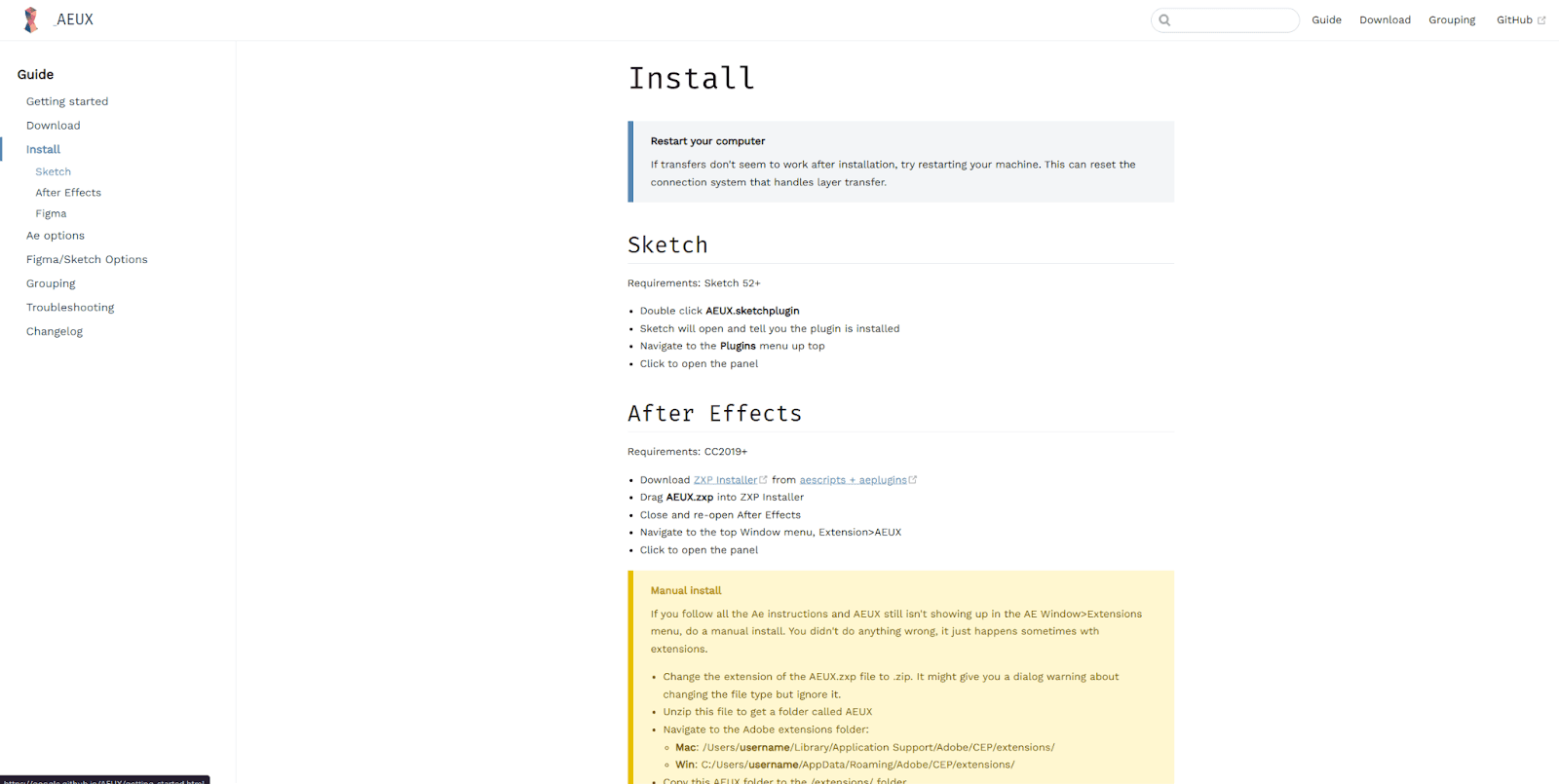
To install AEUX:
Visit the official AEUX install guide:
https://google.github.io/AEUX/install.html#after-effectsFollow the instructions provided on the page; all steps are documented clearly.
Ensure you install:
The AEUX Figma plugin
The AEUX extension for After Effects
Restart Figma and After Effects after installation.
https://www.youtube.com/watch?v=7u77JmnqnUI (Link to AEUX installation video)
Note: If AEUX does not appear in your Figma plugins list, confirm the installation path in the link above and restart the apps.
4.2 Preparing for Export
Once AEUX is installed:
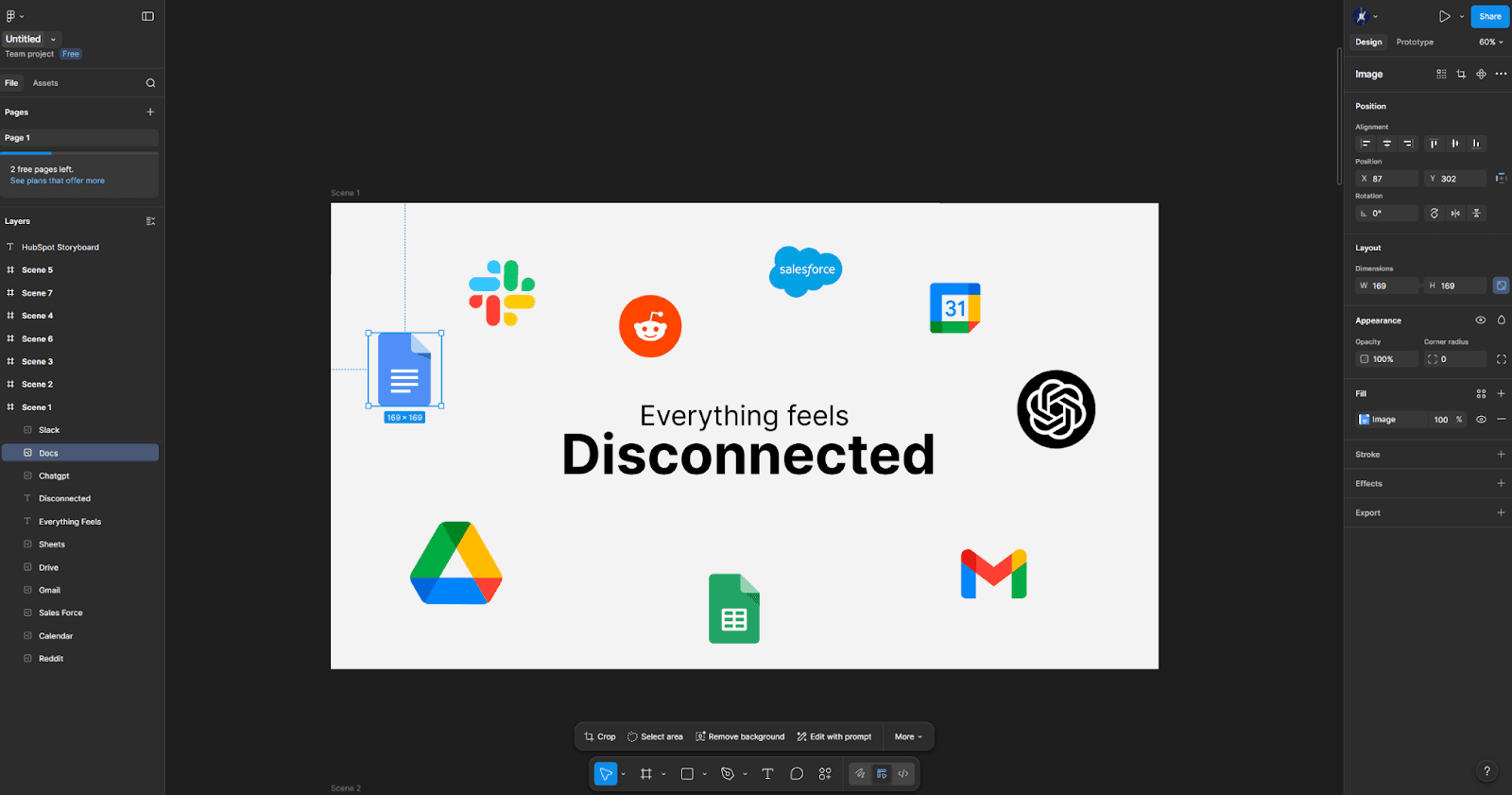
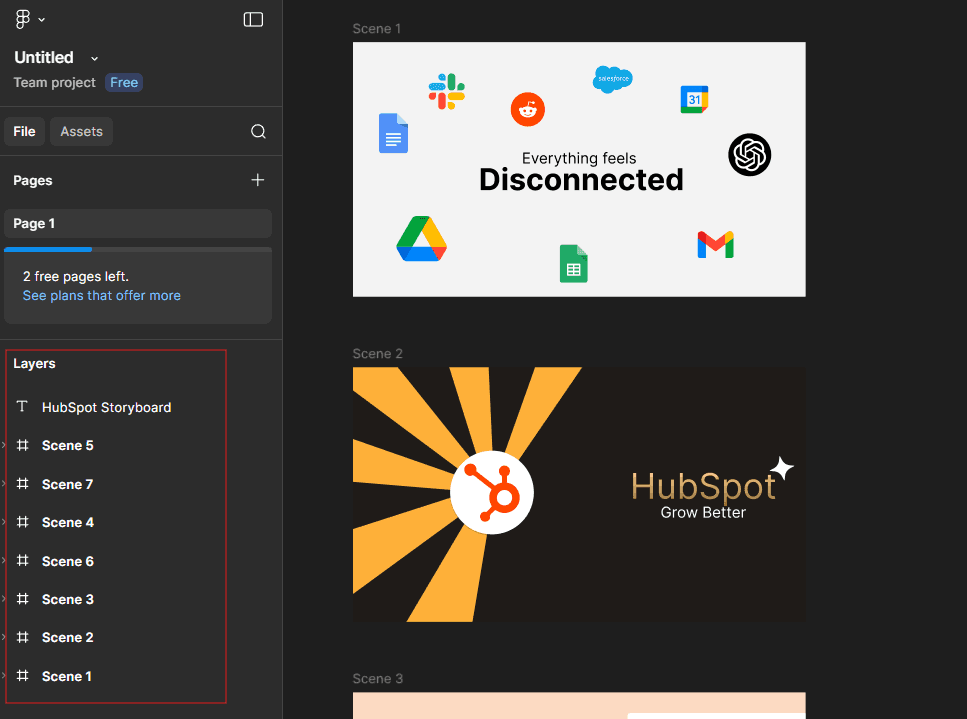
Clean your Figma file:
Remove unused layers
Make sure all elements are named logically
Select the frames/scenes you want to export
Open the AEUX plugin
Export selected frames
AEUX will transfer:Layer hierarchy
Vectors
Groups
Positioning information
This setup ensures that After Effects imports exactly what you designed in Figma.
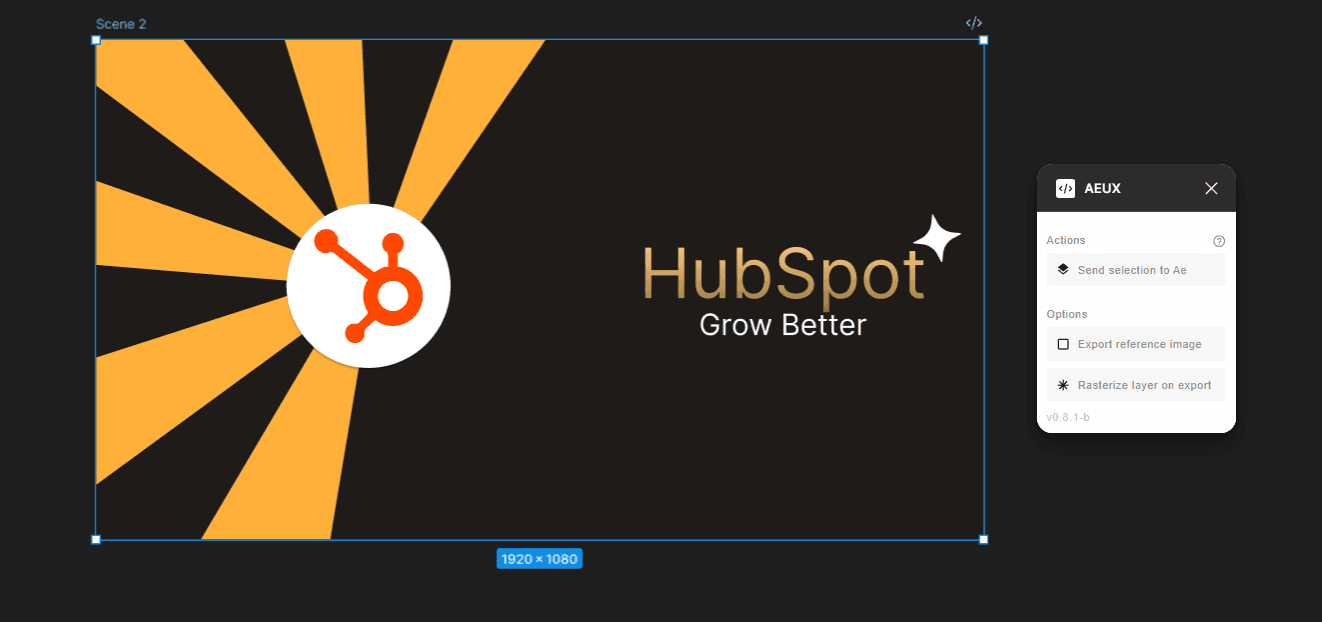
4.3 Exporting Frames Using AEUX
Open the AEUX plugin in Figma.
Select frames or components to export.
Click Export, which will transfer the following into AE:
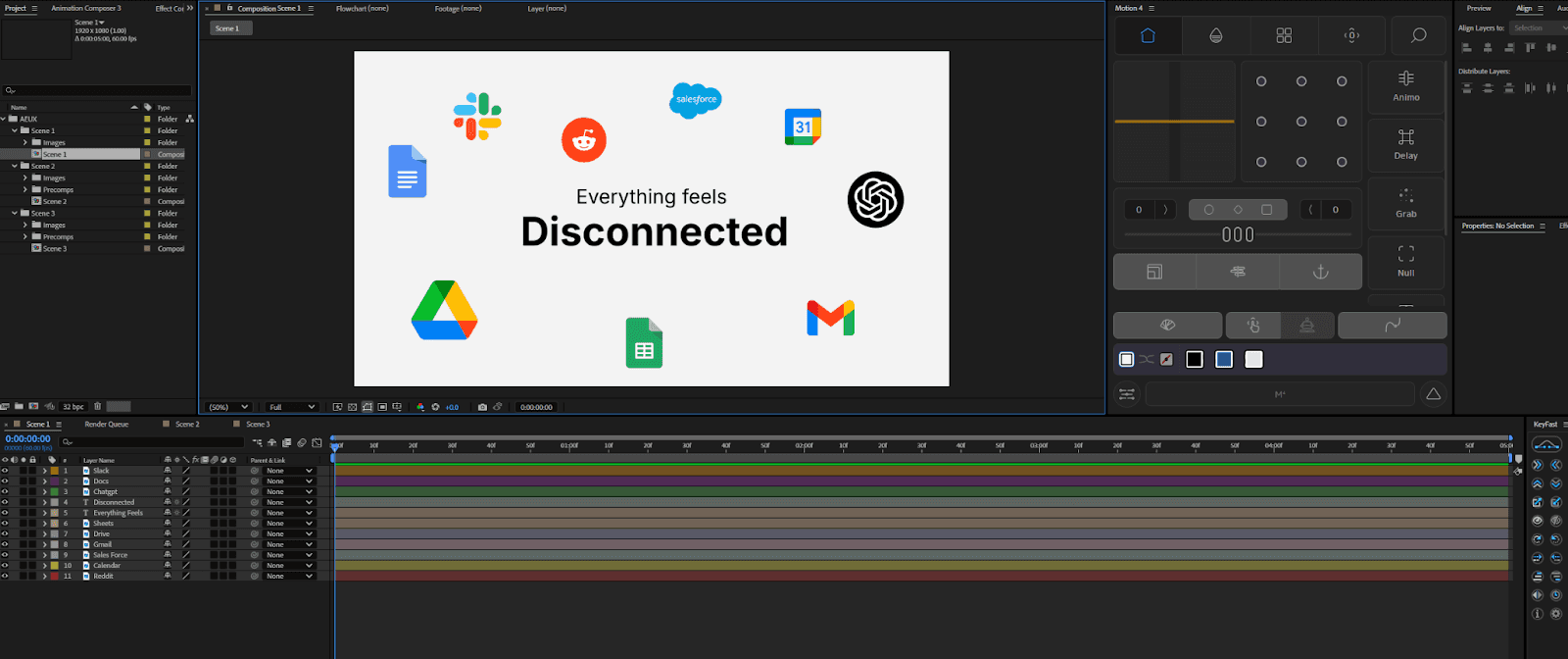
Layer hierarchy
Vectors
Groups
Positioning and alignment
Tips:
Export in batches if the file has many screens
Keep your naming consistent for easier animation in AE
Double-check all assets are included (images, vectors, text layers)
5. Benefits of This Workflow
Time Savings: No need to manually recreate layers in AE
Accuracy: Figma design fidelity is preserved
Easier Asset Management: All layers and elements are automatically grouped and structured
Collaboration-Friendly: Designers and animators can work in parallel without losing design intent
6. Best Practices
Keep Figma files organized and named clearly
Use components and reusable elements for repeated assets
Avoid excessive nested groups, as these can complicate AEUX export
Regularly check for missing layers after export
Use placeholders for images or icons that will be updated later
7. Conclusion
This workflow allows us to maximize efficiency and maintain design fidelity from Figma to After Effects. By using AEUX:
We reduce repetitive work and setup time in AE
Maintain accurate layer structure and asset integrity
Accelerate the animation process for multiple screens or UI projects
As design tools and plugins evolve, staying informed about new features and techniques is crucial. This workflow may adapt in the future, but the principle of clean, structured, and efficient Figma → AE import remains core to our process.