1. Handling Projects in Each Status
1.1. Status: In Progress
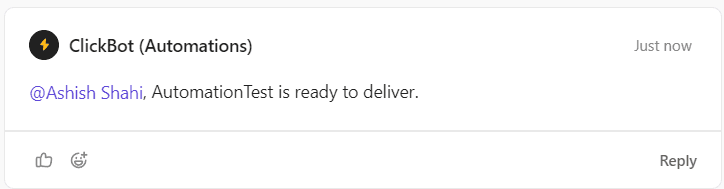
Use the Production Supervisors Checklist to confirm all files are ready.
1.1.1. Mentioning Team Member
Specify the team member responsible for completing each specific task in the project. (Script writer, Voice artist, Video Editor)

Note: There's no need to mention the team member if the specific task has already been completed. For screen recordings, please mention the Script writer.
1.1.2 Assigning the task
For Script
Add 'script' tags for scriptwriting.

Ensure a comment is added in the comment section by the Chatbot. All script-related conversations should take place within this comment as a thread.

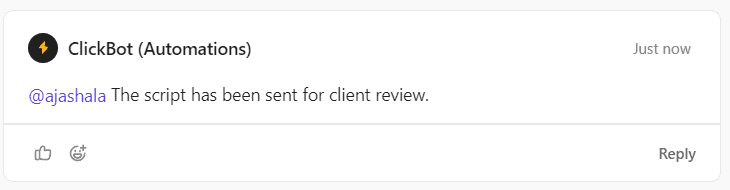
Once script has been sent for a client review, you receive the following notification. No action is required.
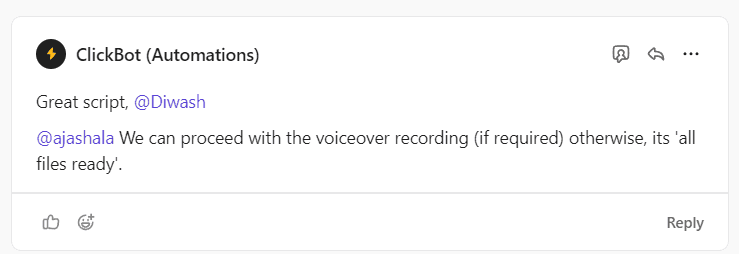
After script has been approved, you will receive the following notification.
For Screens
Ensure the custom field; 'Screens' is set to required.

Add 'screen' tags for screen recording.

Ensure a comment is added in the comment section by the Chatbot. All screen-related conversations should take place within this comment as a thread.
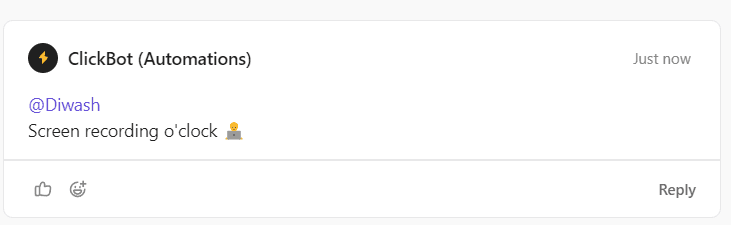
Once script has been sent for a client review, you recieve the following notification. No action is required.
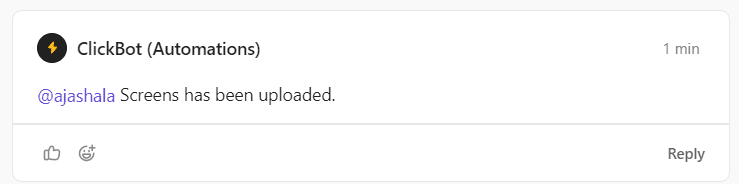
For Voiceover
Add 'voiceover' tags for voiceover recording.

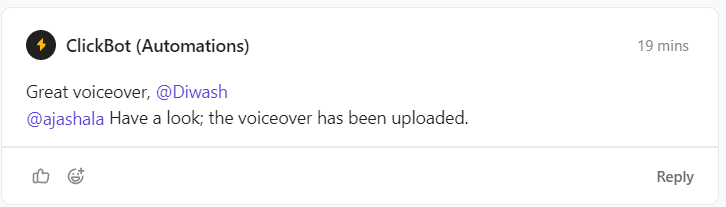
Ensure a comment is added in the comment section by the Chatbot. All voiceover voiceover related conversations should take place within this comment as a thread.
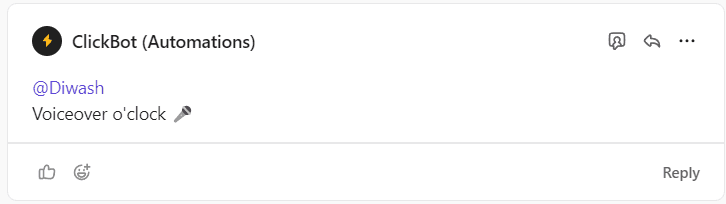
After voiceover is uploaded, you will receive the following notification.
For Video Editing
Share the project with respective editor.
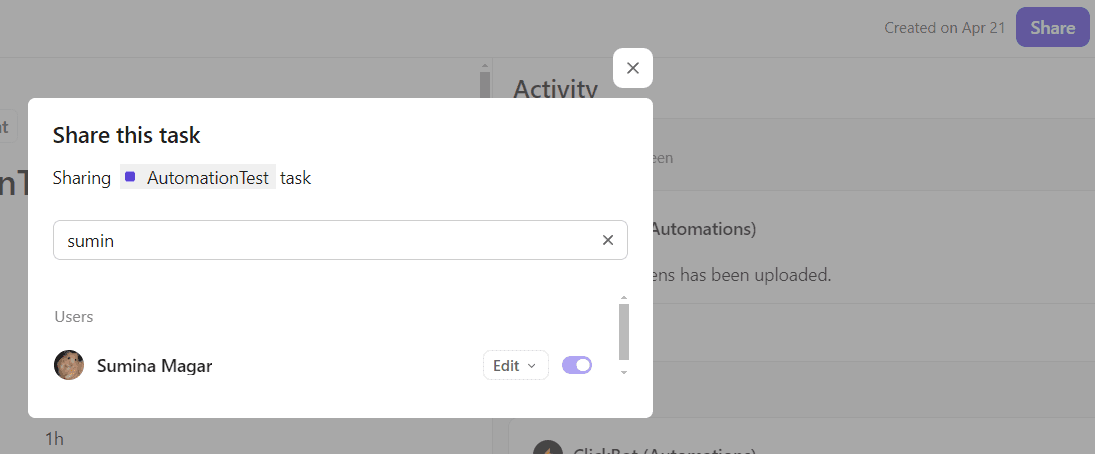
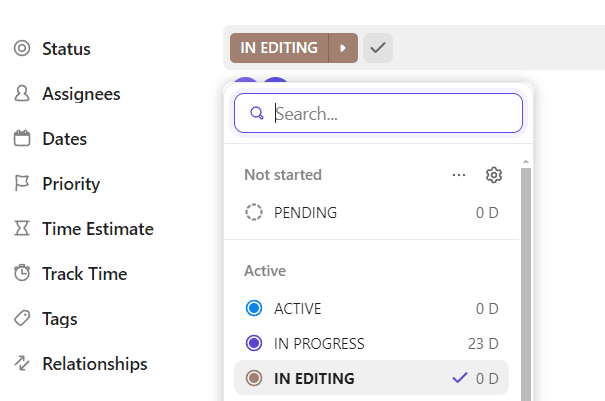
Update the Status from "IN PROGRESS" to "IN EDITING"
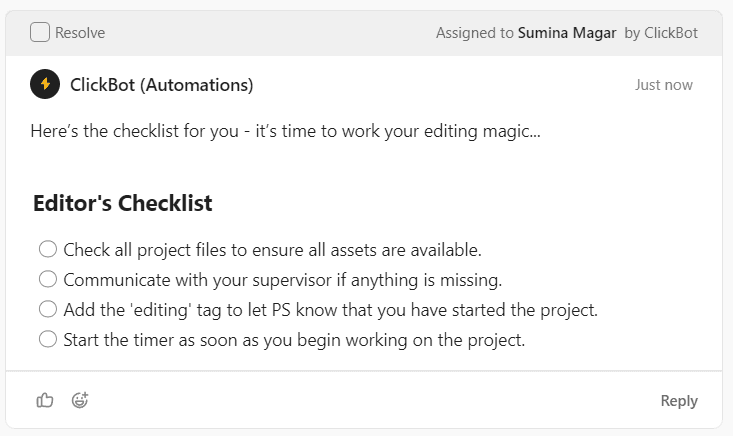
Ensure the ClickBot drop the Editor's Checklist.
1.2. Status: In Editing | In Revision
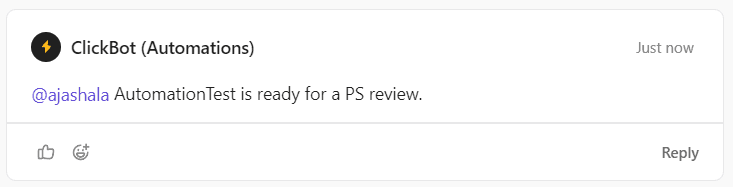
When VE completes the video, you will recieve the following message.
2.1 Add a 'ps review' tags and

2.2 communicate with the VE inside this thread if necessary. Once the First Draft is approved, check the 'Final video'

Ensure following message is dropped.